
Open Telegram's app management page
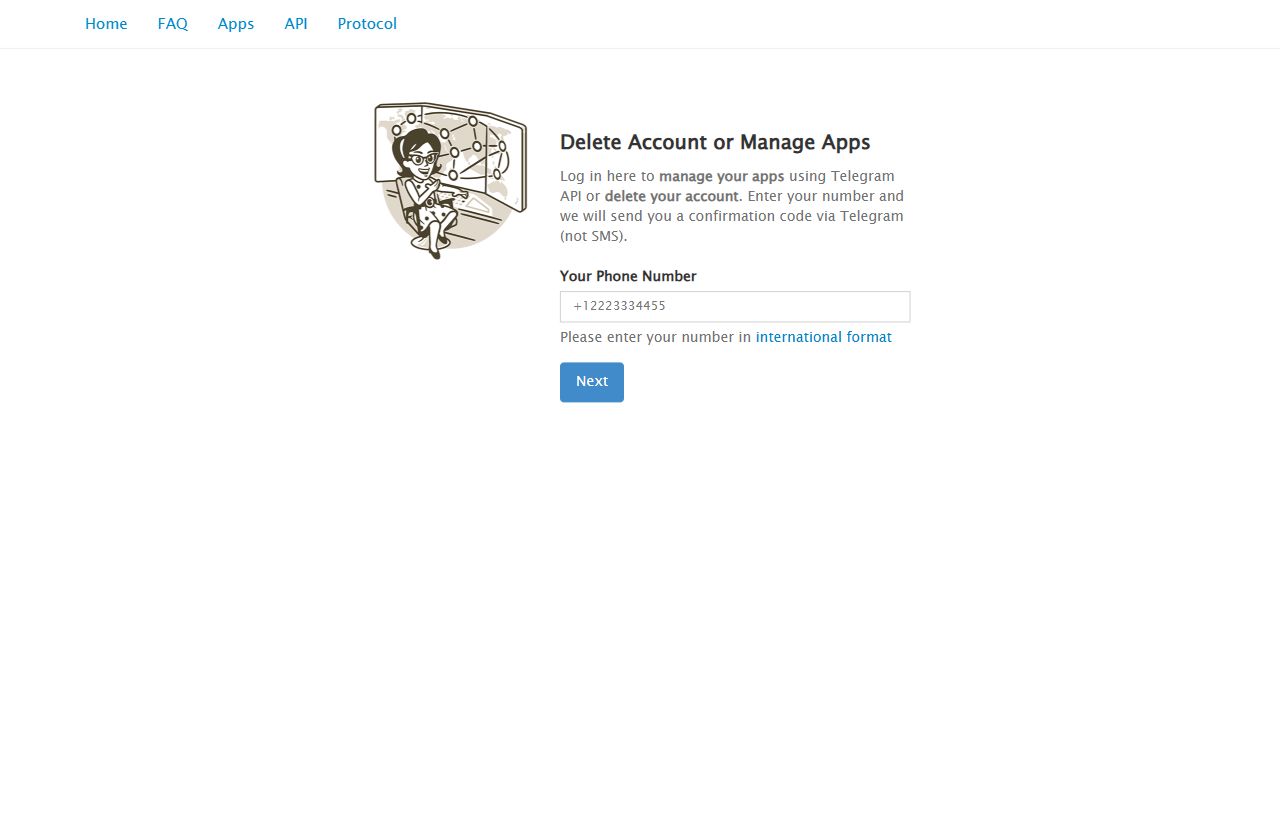
Go to my.telegram.org/apps. If Telegram redirects you to login, enter your Telegram phone number.
Telegram Setup Help
TeleNav needs a Telegram API ID and API Hash so TDLib can connect your own Telegram account to the app. You create these values on Telegram's official app management website, then paste them into TeleNav.
Before You Start
Step-by-Step
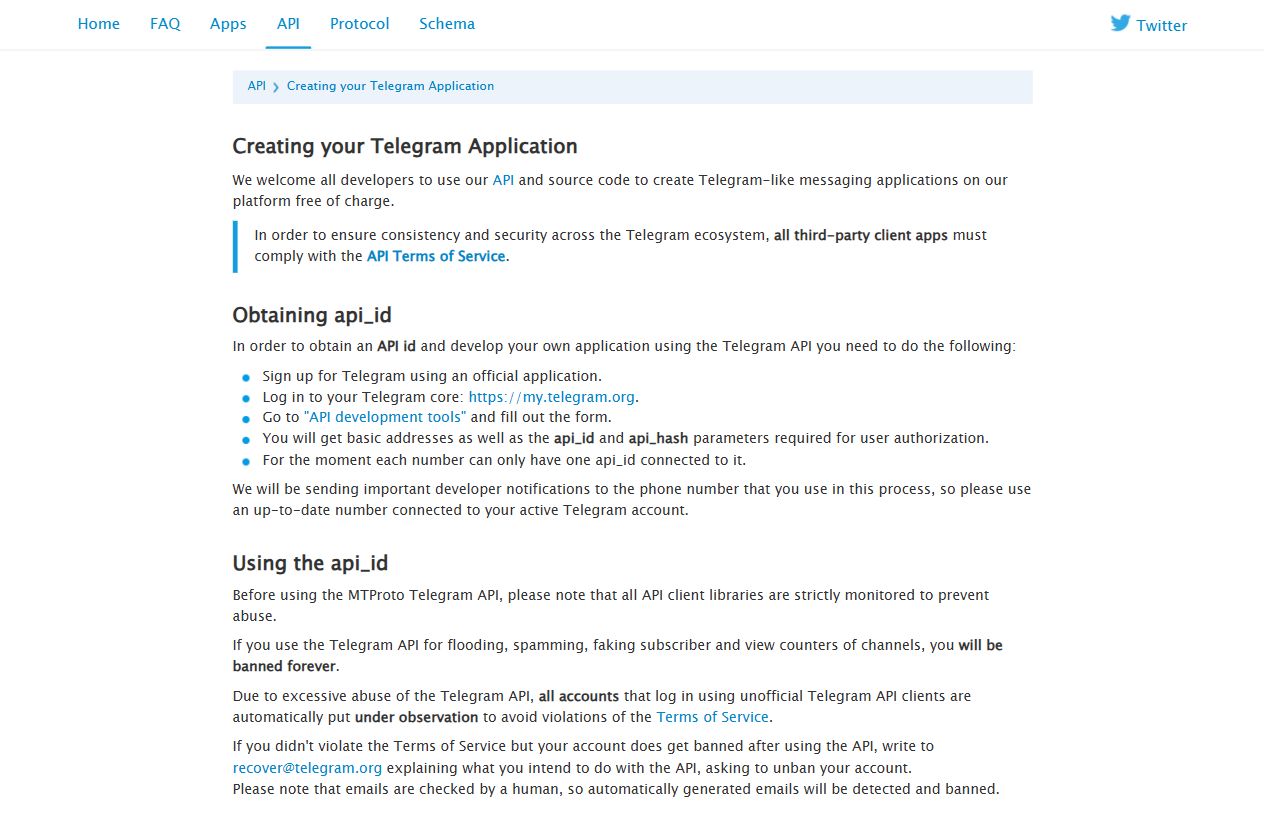
Telegram's official API documentation says the API ID and API Hash are created from the Telegram core site through API development tools. Follow this user-safe flow.
Go to my.telegram.org/apps. If Telegram redirects you to login, enter your Telegram phone number.
Telegram sends a confirmation code to your Telegram account. Enter that code on my.telegram.org. Do not share this code with anyone.
After login, choose API development tools. This opens the page where you can create or manage your Telegram application credentials.
If you do not already have an app, fill the application form. Use a simple app title such as TeleNav. For platform, choose the option closest to Android/mobile app use.
After the form is saved, Telegram shows api_id and api_hash. Copy both values exactly. The API ID is numeric. The API Hash is a longer private text value.
TeleNav Setup
If you are documenting or reporting a bug, hide the API Hash before taking screenshots.
Safety Rules
Do not post your API Hash in issues, chats, screenshots, videos, or support messages.
Only enter your phone number on Telegram-owned pages such as my.telegram.org. Avoid lookalike pages.
Telegram login codes prove account ownership. TeleNav only needs the code entered inside the app flow.
Troubleshoot
Check that your phone number includes the country code. Open Telegram and confirm you can receive service notifications from Telegram.
Make sure you are logged in on my.telegram.org, then open the Apps page again. The direct URL is my.telegram.org/apps.
Copy the API ID and API Hash again. Do not add spaces before or after the values. API ID should be digits only, while API Hash should be pasted exactly as shown.
No. Use one Telegram app credential set for TeleNav unless you have a specific reason to create another one.