Personal Cloud Drive
Use your Telegram account as the storage layer for documents, photos, videos, and other files.
Official User Guide
TeleNav turns your personal Telegram account into an encrypted Android cloud drive. This guide walks through installation, vault setup, Telegram login, file upload, recovery, common issues, and support.
Introduction
TeleNav is a native Android app that stores files in your personal Telegram cloud. Before upload, the app encrypts file content and metadata locally, then sends encrypted chunks and manifests through Telegram Saved Messages.
Use your Telegram account as the storage layer for documents, photos, videos, and other files.
Your vault password protects local encryption keys. Recovery kit import is available during setup.
Gallery, file preview, upload queue, and streaming flows are built for Android-first daily use.
Before You Start
Getting Started
Follow the screens in order. Some screenshots show empty and filled states so you know what each step looks like before and after entering information.
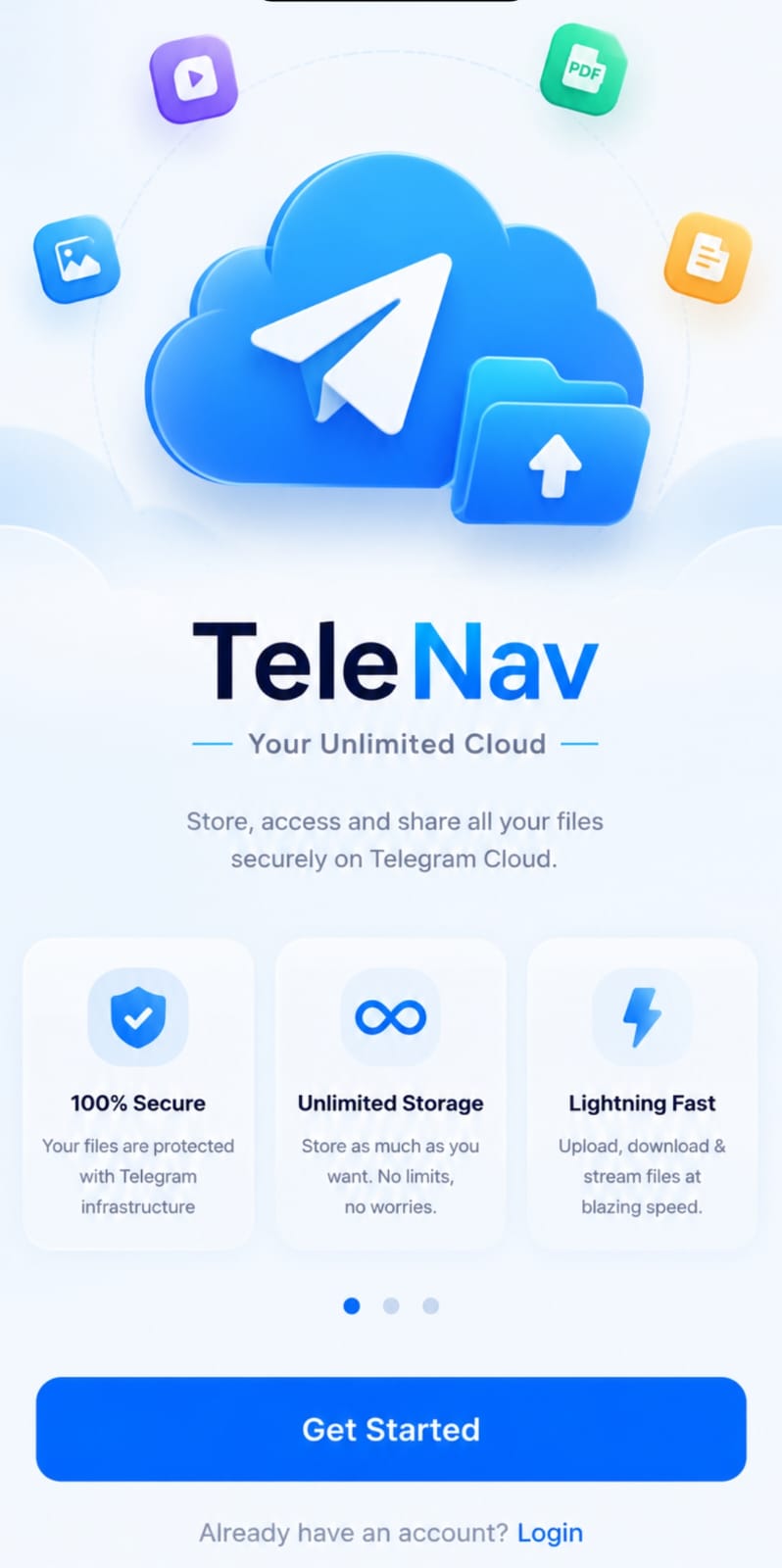
The welcome screen introduces the app. Tap Get Started to create a new encrypted vault. Use Login only when returning to an existing setup flow.
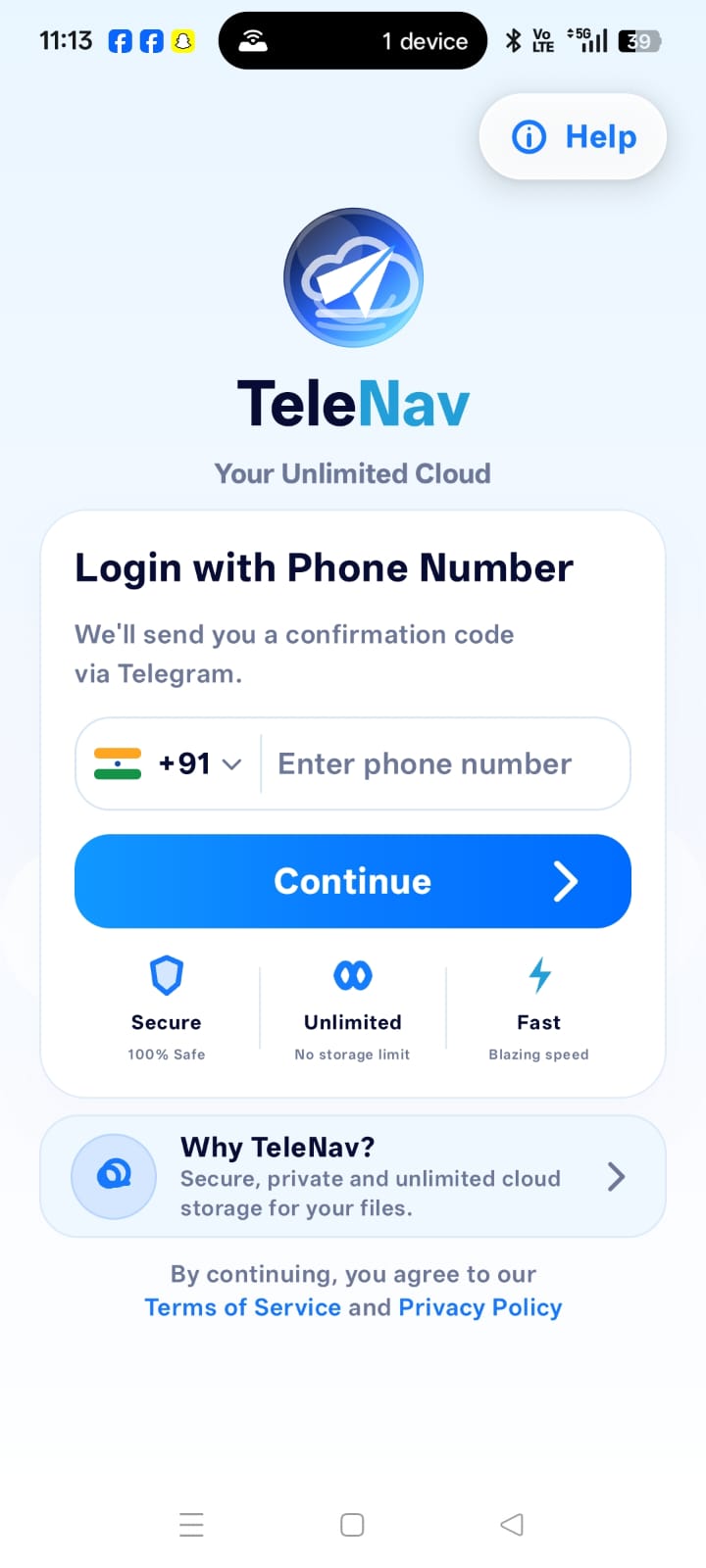
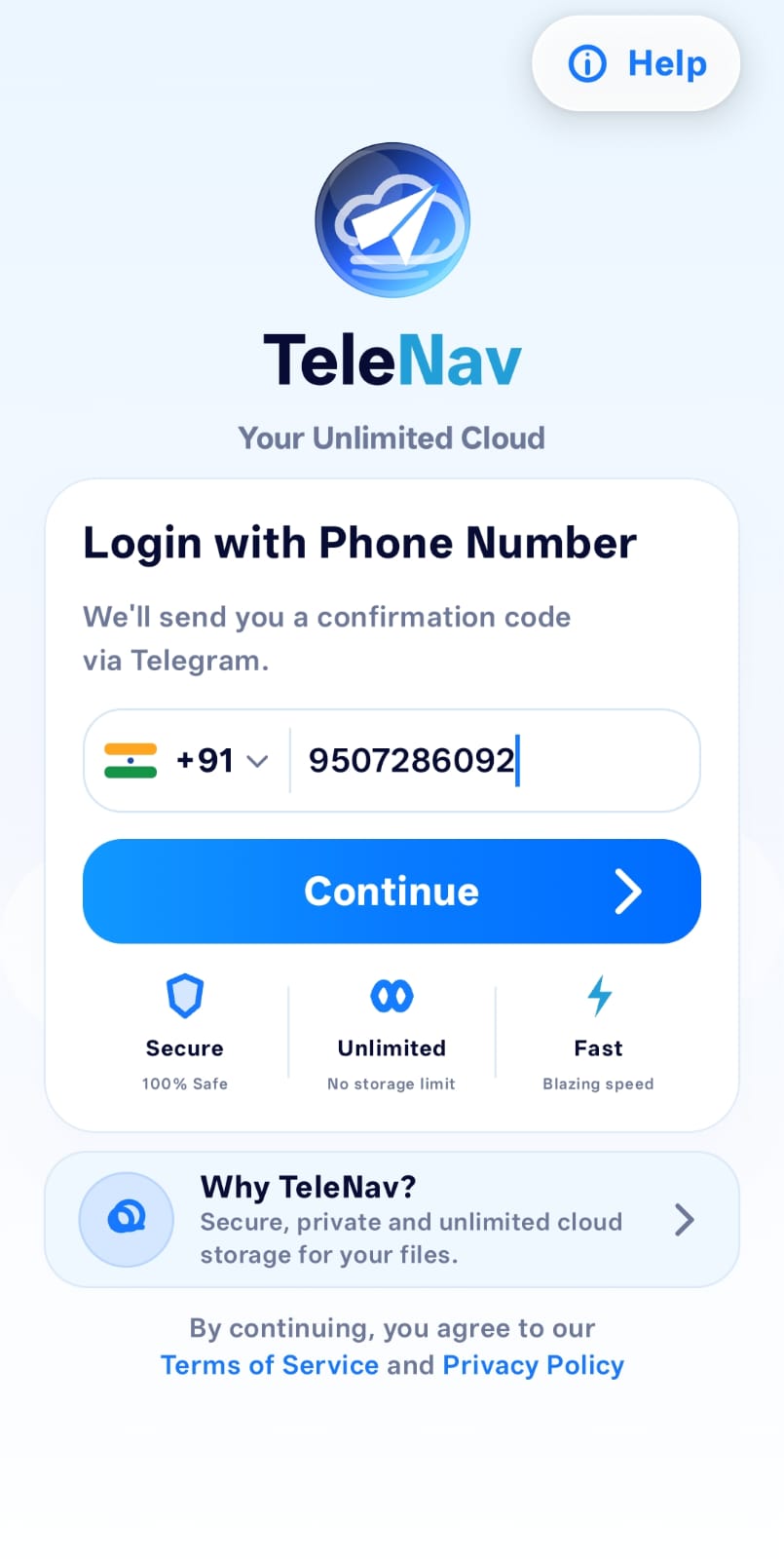
Type the phone number connected to your Telegram account and tap Continue. TeleNav uses this number only to request Telegram authorization through TDLib.
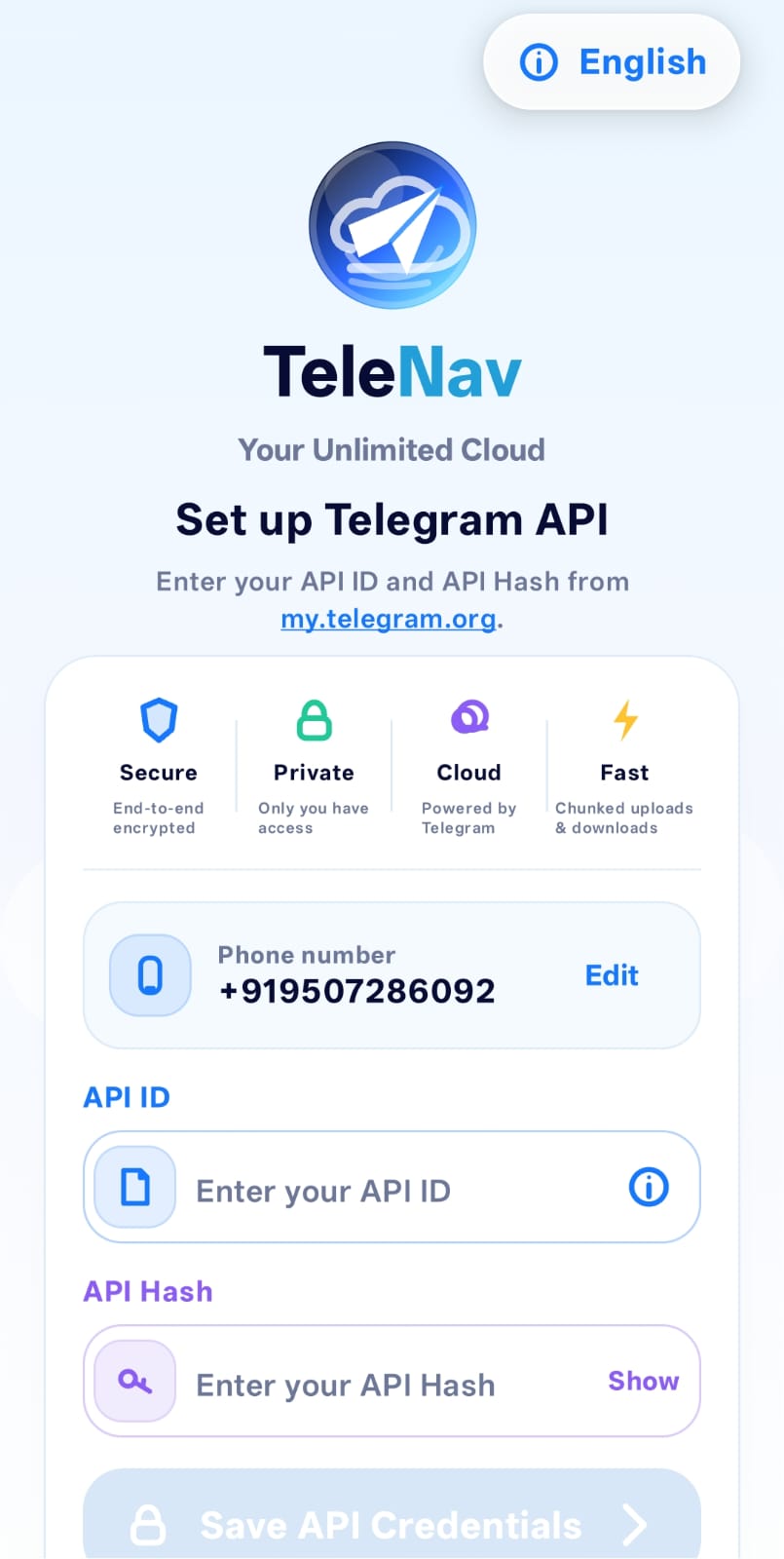
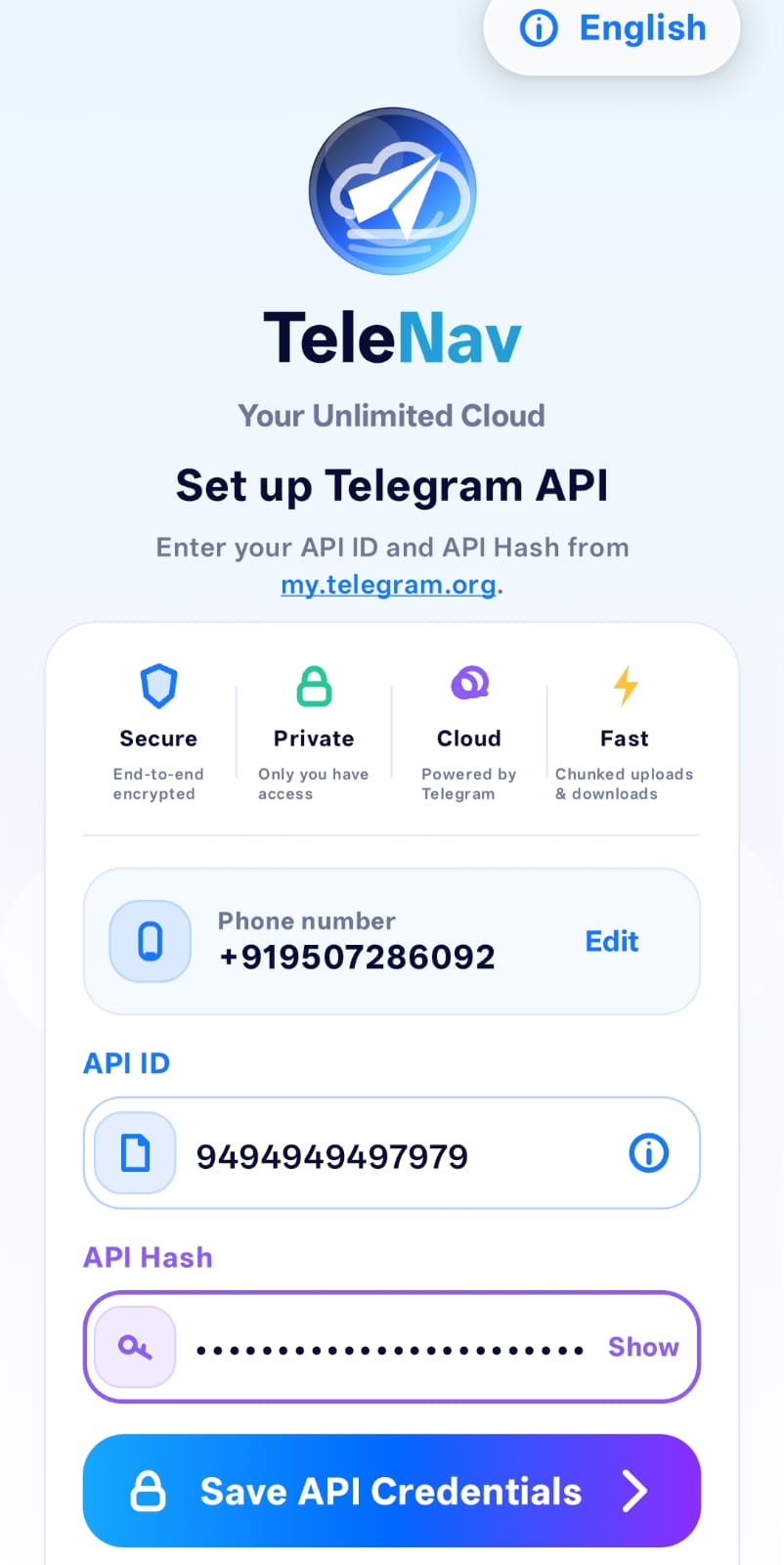
Enter your API ID and API Hash from my.telegram.org/apps, then tap Save API Credentials. Need help? Open the Telegram API ID and API Hash guide. The API Hash is sensitive, so do not share screenshots that reveal it.
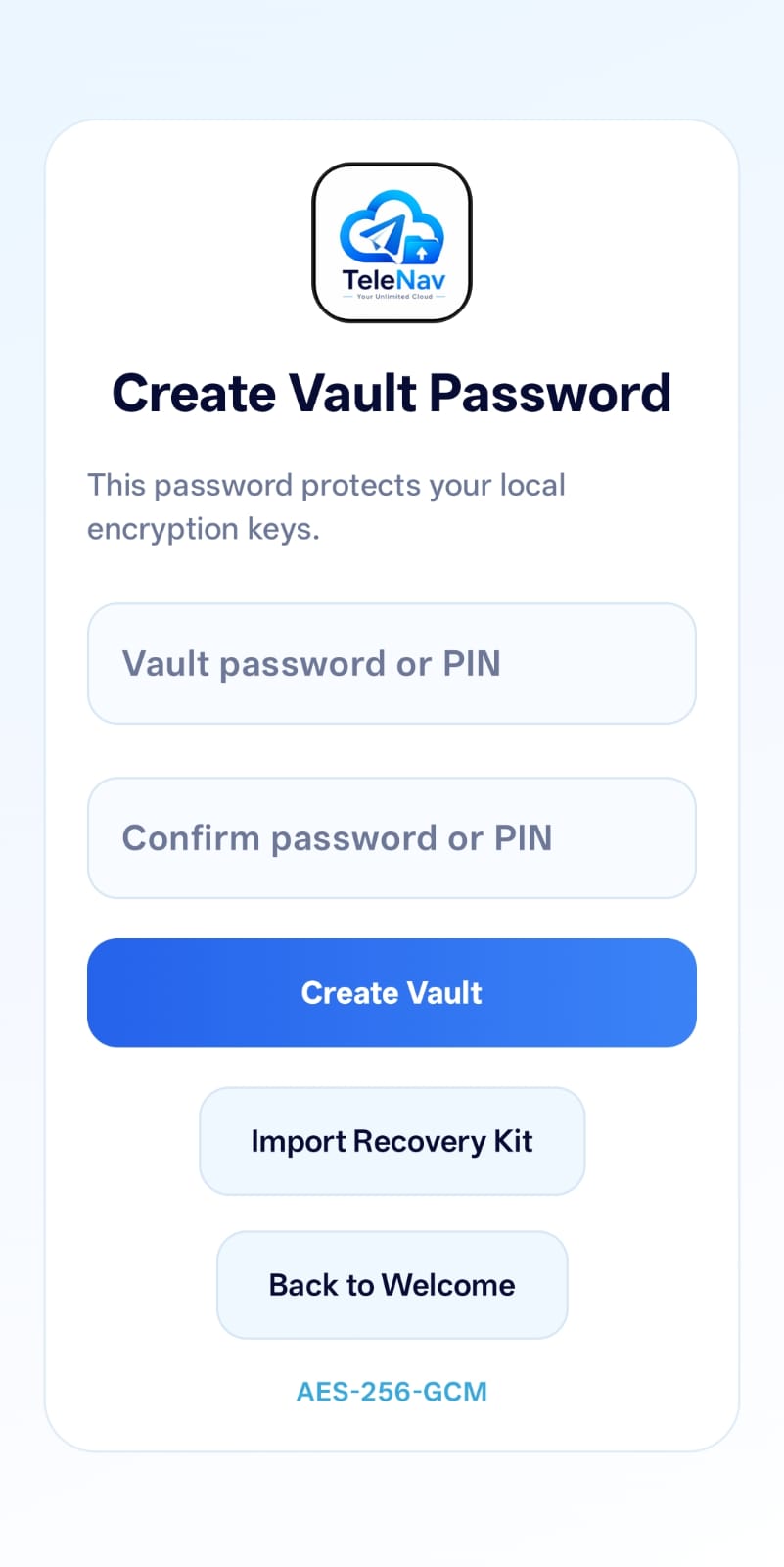
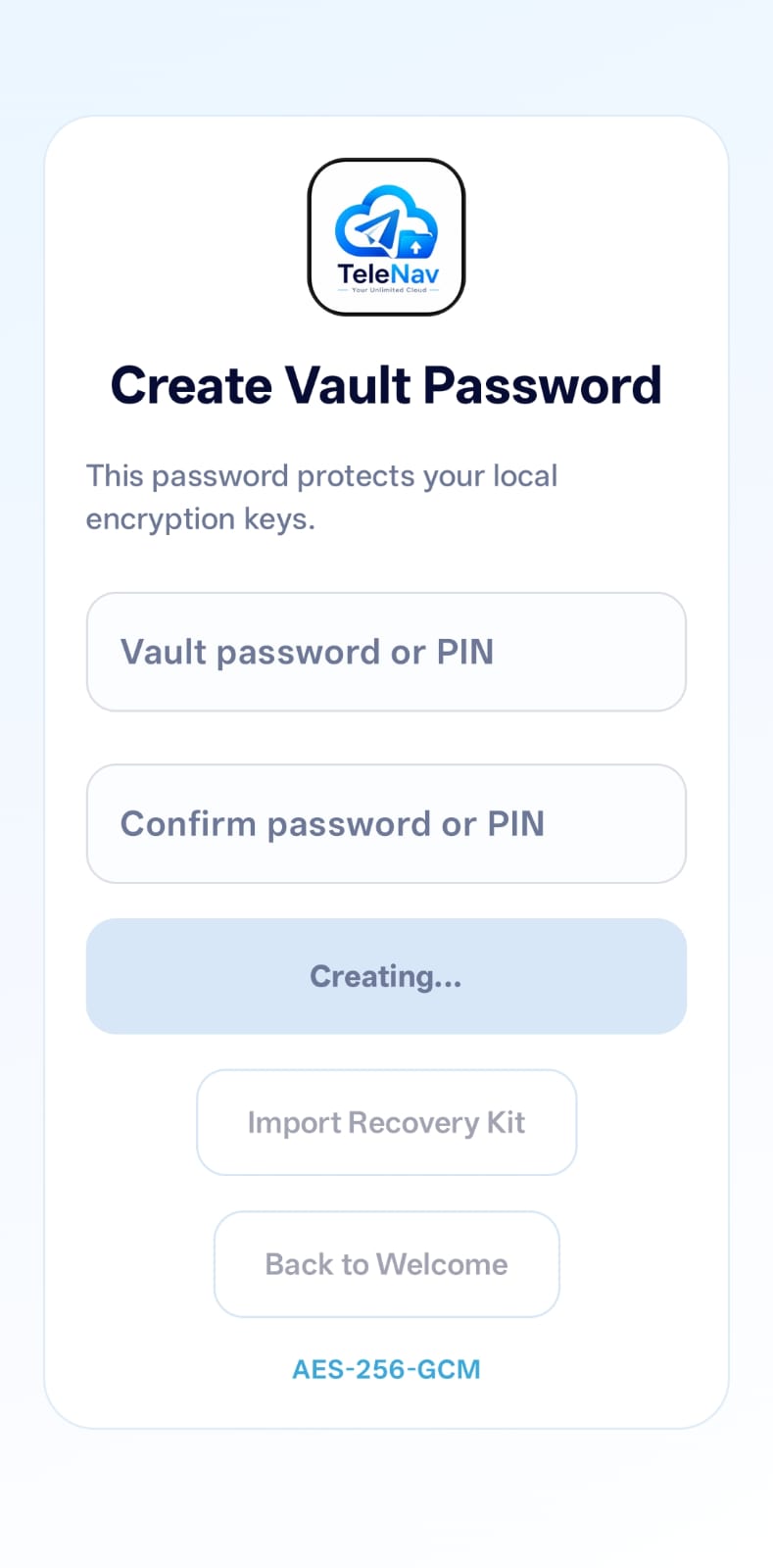
Enter a vault password or PIN, confirm it, then tap Create Vault. TeleNav shows Creating... while the encrypted vault is prepared.
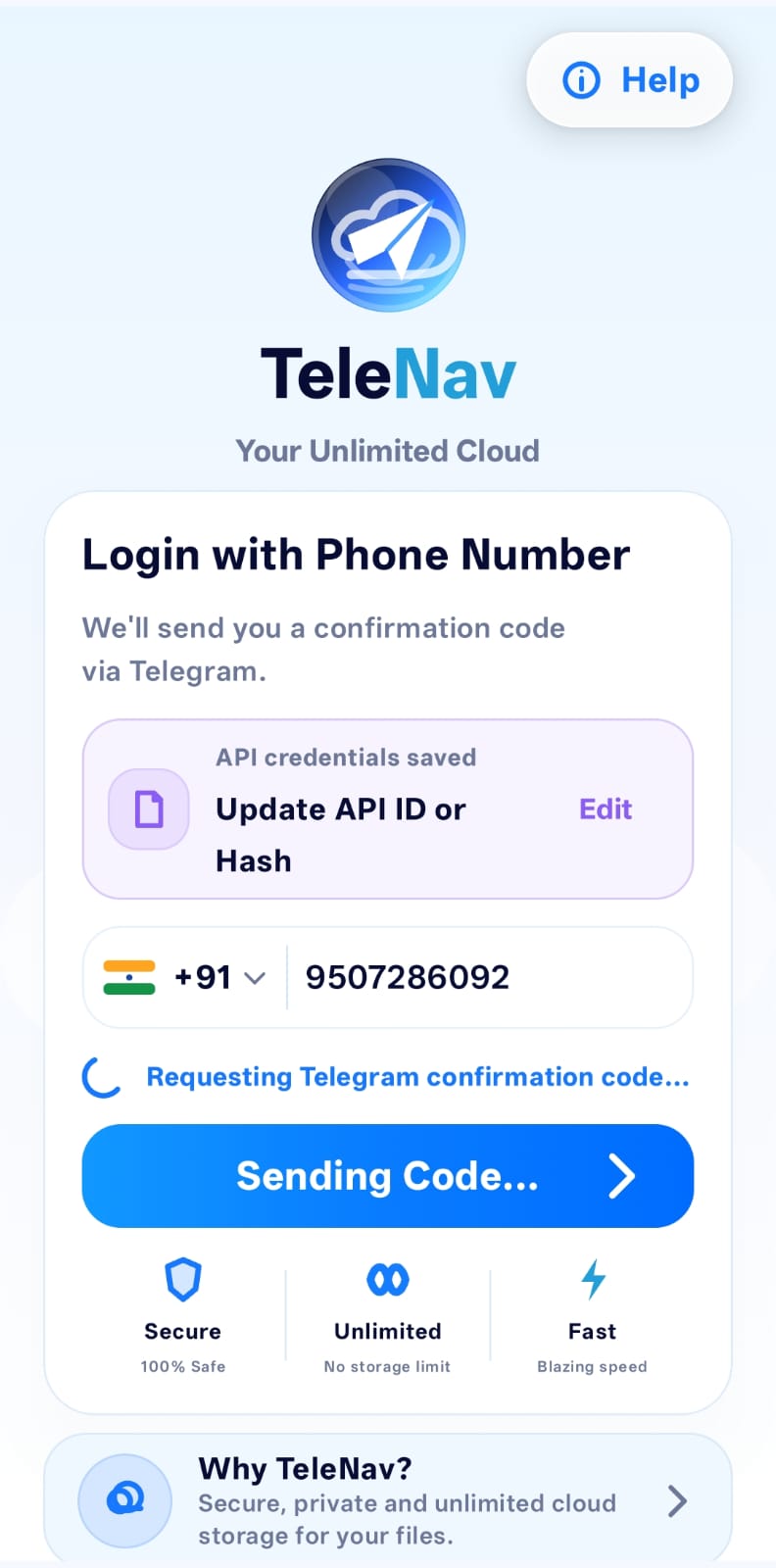
TeleNav requests a confirmation code from Telegram. When the code arrives in Telegram service notifications, copy it carefully and never share it with anyone.
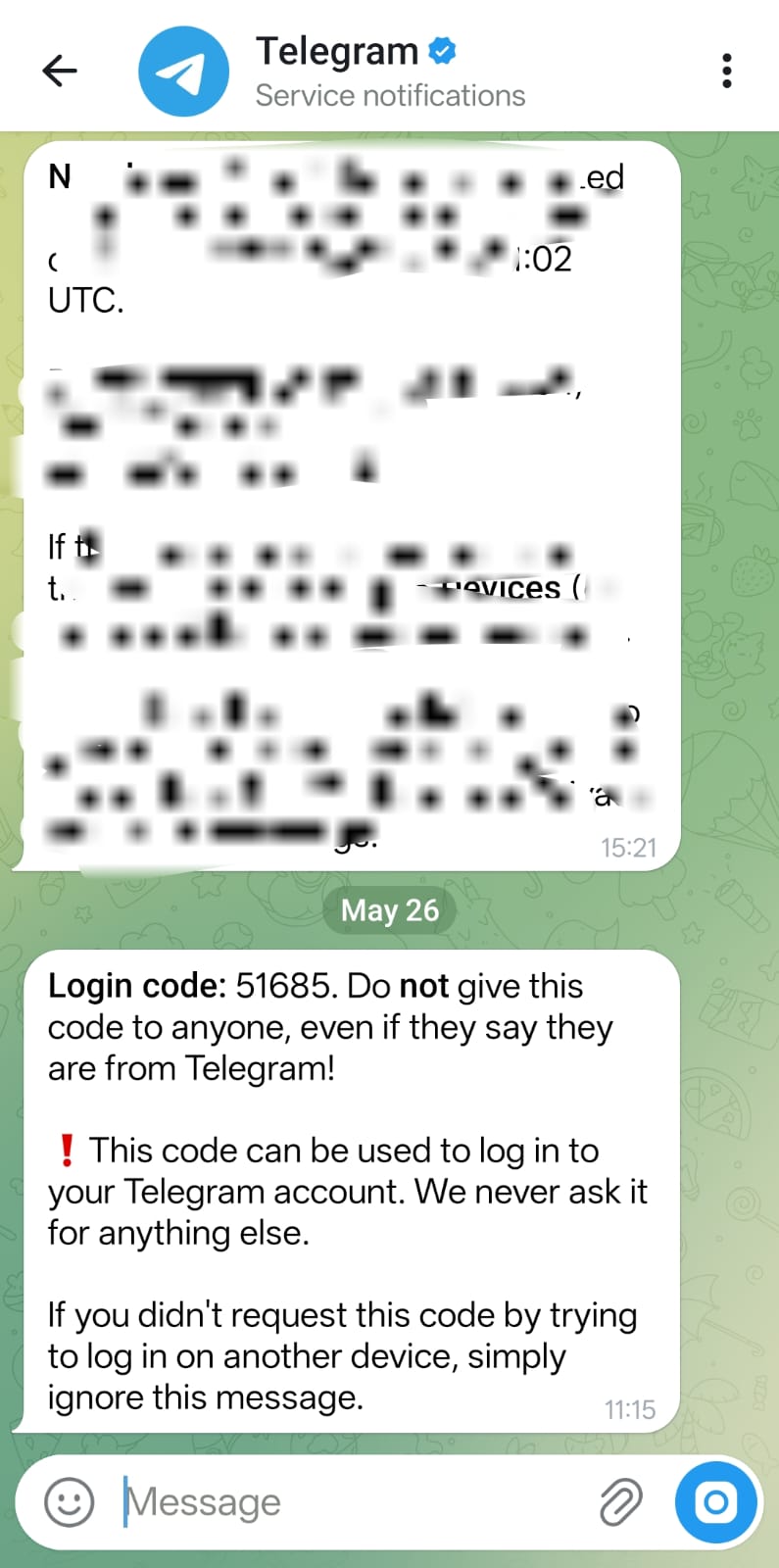
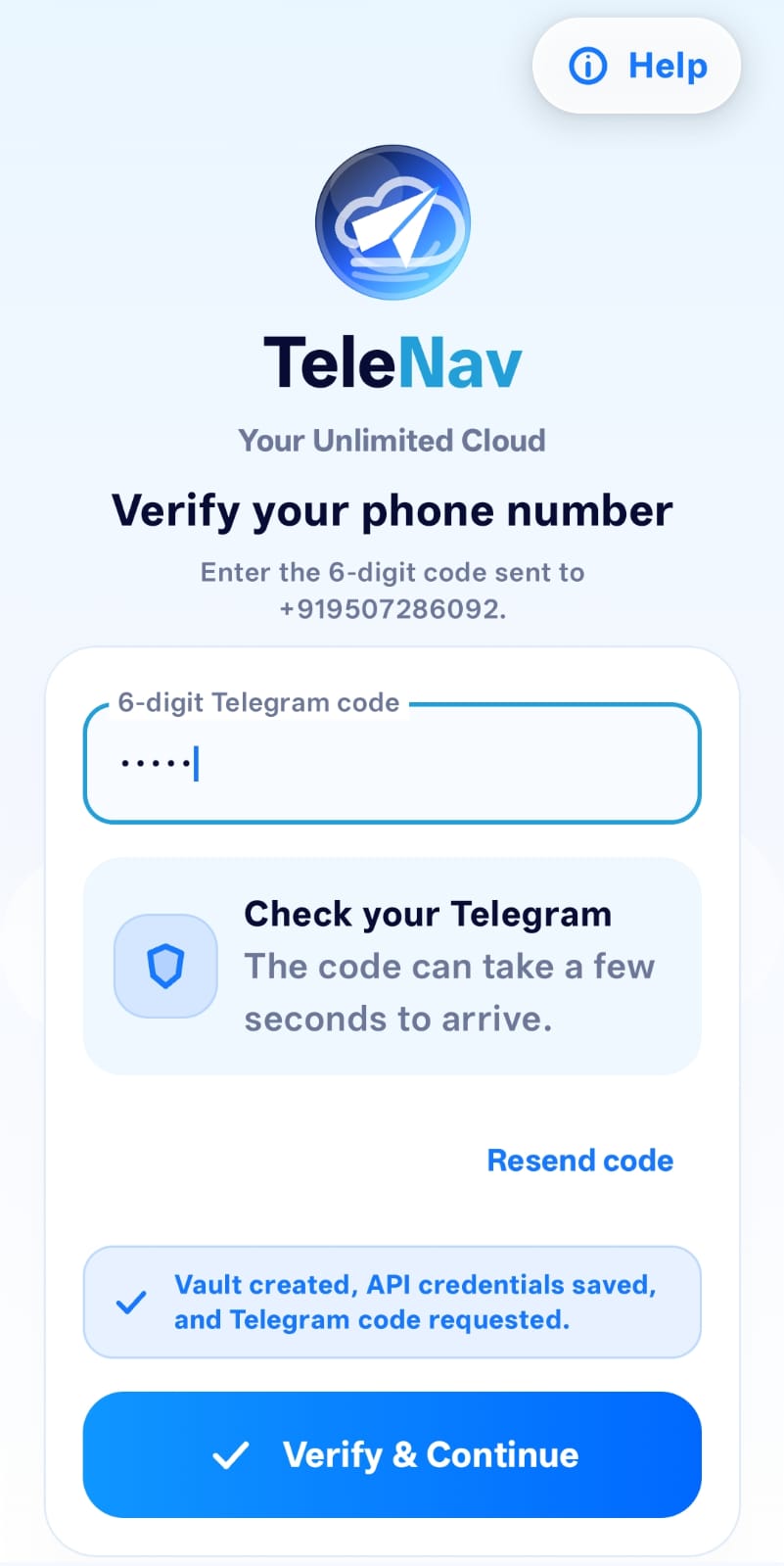
Return to TeleNav, enter the 6-digit Telegram code, and tap Verify & Continue. If Telegram asks for two-step verification, enter the Telegram 2FA password when prompted.
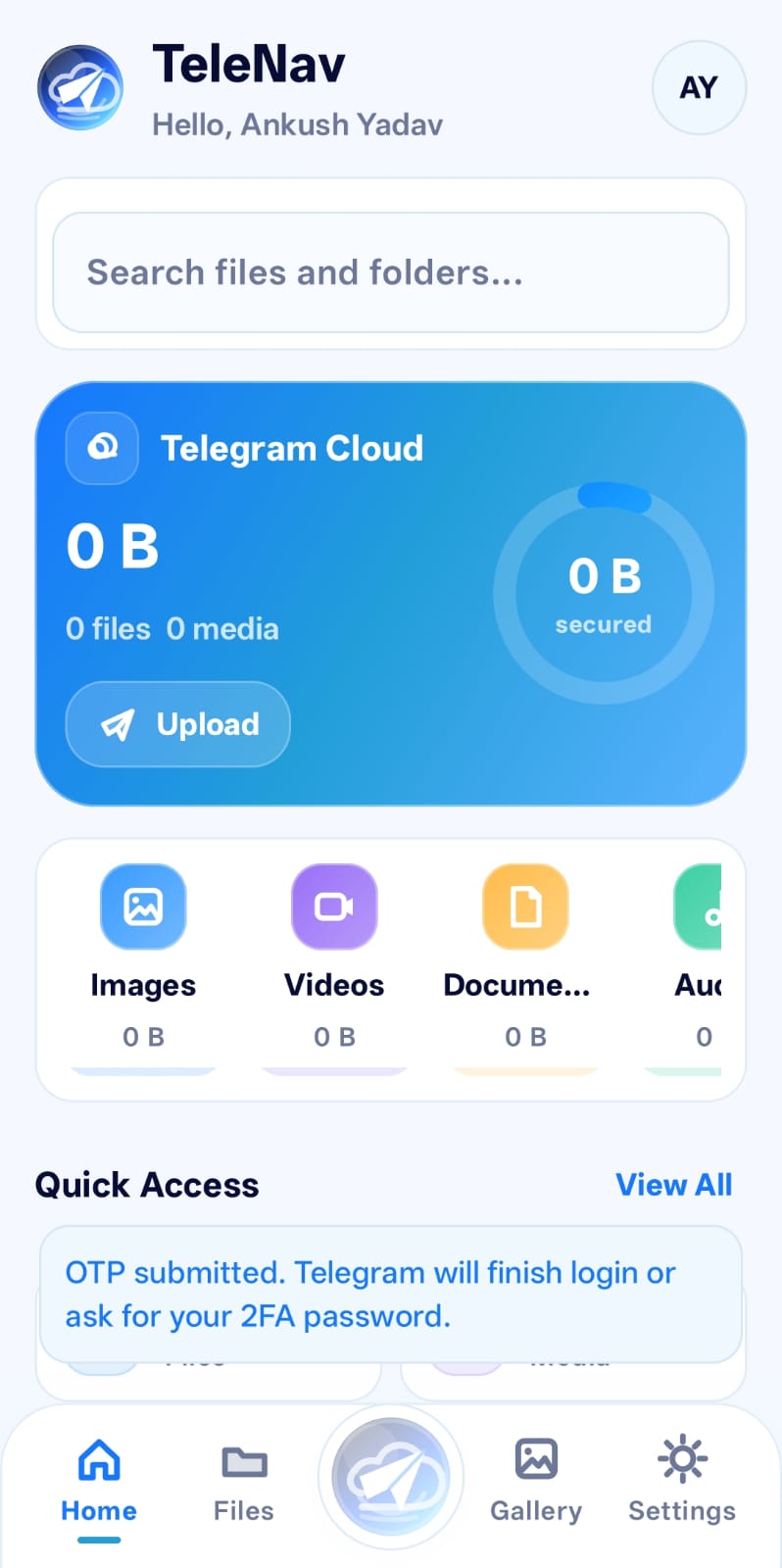
Once authorization finishes, the Home screen displays Telegram Cloud storage, category shortcuts, quick access messages, and bottom navigation for Home, Files, Upload, Gallery, and Settings.
Features Explained
TeleNav encrypts files with AES-256-GCM before upload. Large files are split into encrypted chunks and finalized with an encrypted manifest.
See cloud summary, recent status, quick actions, and navigation to Files, Upload, Gallery, and Settings.
Add files from Android storage, track upload progress, and resume transfer sessions when the network or app flow is interrupted.
Browse media with thumbnail warming, bitmap caching, and paging so large galleries stay responsive.
Open supported media from the cloud library with streaming and local cache support instead of waiting for full manual downloads.
Export and store a recovery kit after setup. It can restore vault key access after reinstalling, resetting, or moving to a new phone.
Installation Guide
Only install APKs from the official TeleNav website or trusted build outputs. Do not install modified APKs from unknown sources.
Security Notes
Telegram API Hash, OTP codes, Telegram 2FA password, vault password, recovery kit, or recovery password.
Telegram can still see account activity, approximate encrypted file sizes, timing, and Saved Messages usage.
A rooted or compromised phone, malicious keyboard, or screen recorder can weaken app-level privacy.
Troubleshoot
Confirm the phone number is correct, keep Telegram open, wait a minute, then use Resend code. If Telegram rate limits requests, wait before trying again.
Recheck the API ID and API Hash at my.telegram.org/apps. API ID should contain digits only. API Hash must match exactly and should not include spaces.
Check capitalization and keyboard language. If the vault cannot be unlocked, use the recovery kit flow if you exported one earlier.
Switch to stable Wi-Fi, disable strict battery saver for TeleNav, keep enough free storage for temporary encrypted chunks, and leave the app open during large uploads.
The bundled TDLib library currently supports arm64-v8a phones. Other Android ABIs need matching TDLib native libraries included in the app build.
Contact Support
Send your device model, Android version, app version, and a short description of what happened. Never include passwords, OTP codes, API Hash, recovery kit, or private Telegram data.